
Create and use a saved reply
On this page
Save answers you send often, then drop them into a reply with one click and adjust them before sending.
Before you start
- Check you're in the right workspace.
- Have your reply text ready. A name can be up to 50 characters and the text up to 2,000 characters.
- Decide where you want the reply: in every workspace you work in, or only in some of them.
Open the feature
Choose Engage in the left sidebar. Click the settings icon at the top right and choose Replies. The Saved Replies page opens.
The page opens on All Workspaces, which lists every saved reply you can use in any workspace. Click Current Workspace to see only the replies available in the workspace you're in. Each reply is tagged All workspaces or with the names of the workspaces it's available in. A reply that can't be used in the workspace you're in is marked Not available in this workspace.
Steps
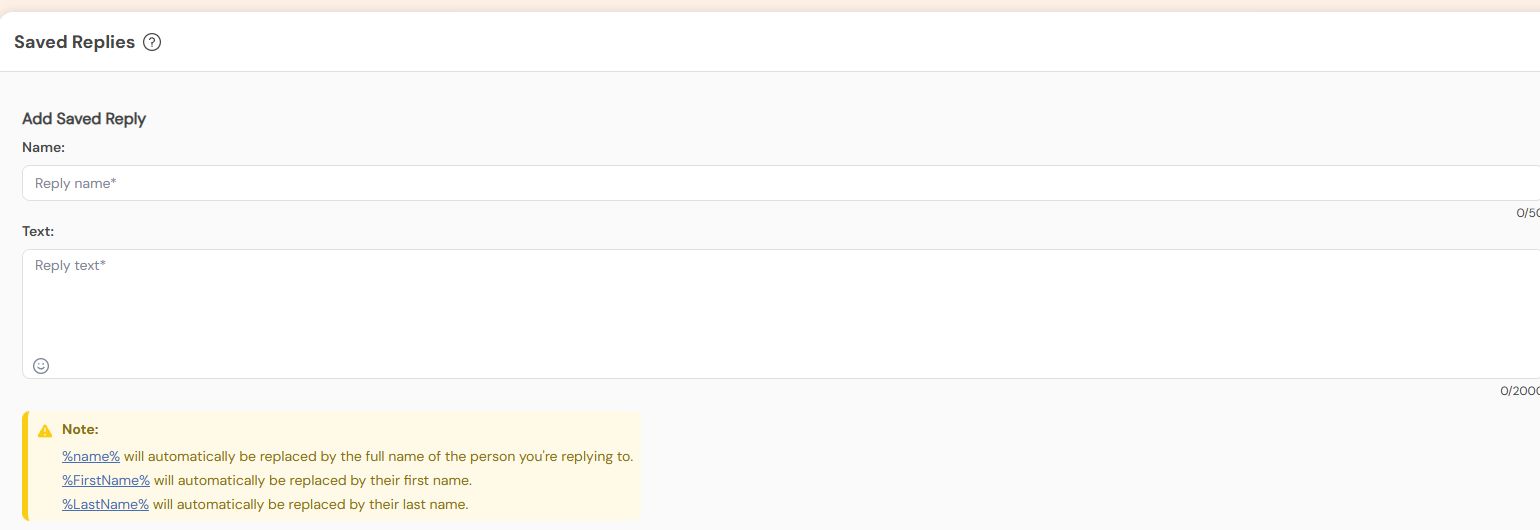
- Click Create New. If you don't have any saved replies yet, click Add Saved Reply. The Add Saved Reply form opens.
- In Name, type a short name you'll recognise.
- In Text, type the reply. To greet people by name, add
%name%,%FirstName%or%LastName%. - Under Available in, choose All workspaces to use the reply everywhere you work, including workspaces you join later. Or choose Specific workspaces, then tick each workspace you want. Use the search box to find a workspace by name.
- Click Save. The reply appears in your list.
- To use it, open a conversation in the inbox and click Saved Replies (the bookmark icon) in the reply box.
- Click the reply you want. Its text is added to the reply box.
- Edit the text if needed, then click Reply or Send.
Expected result
The saved reply is listed on the Saved Replies page. In the reply box, the Saved Replies list shows only the replies available in the workspace you're in. Picking a reply only adds the text. Nothing is sent until you click Reply or Send.
Example
Click Create New, type "Opening hours" in Name, and in Text type "Hi %FirstName%, we're open 9 AM to 6 PM, Monday to Saturday." Under Available in, choose Specific workspaces and tick the one workspace these hours apply to. Click Save. When someone asks about your hours in that workspace, open the conversation, click Saved Replies, click Opening hours, check the text and send it.
Limits and permissions
- Name and Text are both required.
- Saved replies are yours. Teammates don't see them, even in a workspace you share.
- A name must be unique within each workspace a reply is available in. You can reuse a name for replies in different workspaces. A reply available in All workspaces counts as being in every workspace.
- Specific workspaces needs at least one workspace ticked. You can only choose workspaces you can currently open.
%name%is replaced by the person's full name,%FirstName%by their first name and%LastName%by their last name.- To find a reply, type in Search a saved reply on the page, or Search a reply... in the reply box.
- To change or remove a reply, use Edit Saved Reply or Delete Saved Reply next to it. Editing a saved reply doesn't change messages you've already sent.
- If you take a workspace away from a reply that an automation or Comment → DM campaign in that workspace sends, Social Champ asks you to confirm first. Click Remove and save to save the change and take the reply out of those automations. An automation left with no actions is deleted, the same as when you delete a saved reply.
- That check only covers workspaces you can open. An automation in a workspace you can't open keeps sending the reply, and can still be edited and saved there. It just can't add the reply anywhere new.
- If a workspace is deleted, or you lose access to it, your replies stop being available there. A reply that was only available in that workspace is deleted.
Troubleshooting
- Save is greyed out: fill in both Name and Text, keep within the character limits, and if you chose Specific workspaces, tick at least one workspace.
- "Name must be unique" under Name: another of your replies already uses this name in one of the workspaces you chose. Change the name, or choose different workspaces. A reply available in All Workspaces also clashes with a reply in a workspace you can't open right now, so pick a different name.
- A saved reply is missing: on the page, click All Workspaces. In the reply box, check you're in a workspace the reply is available in, and clear the Search a reply... box.
- The bookmark button is covered by a warning: dismiss the warning, then open Saved Replies again. Dismissing a disconnected-account warning does not reconnect the account; reconnect it separately before sending from that account.
- The person's name didn't appear: some profiles don't share a name. Check the text before you send.